How you look for keywords on a website depends on what you want to find. To find a word on a page, press Ctrl+F (Cmd+F on a Mac). To see which keywords a site already ranks for, use Google Search Console for your own site or a tool like Semrush or Ahrefs for a competitor. To find new keywords for your website, run keyword research.
Most guides cover only 1 of those jobs. This guide covers all 3 in 6 numbered methods, plus how to read a page's source code to see which keyword it targets. Pick the method that matches your goal and skip the rest.
Which keyword method do you need?
Start with the question you are trying to answer. The table below routes you to the right method in seconds.
| Your goal | Method | Tool | Cost |
|---|---|---|---|
| Find a word or phrase on 1 web page | 1. Find in page | Ctrl+F or Cmd+F | Free |
| Find every page on a site that mentions a term | 2. Search the whole site | Google site: operator |
Free |
| See the keywords your own site ranks for | 3. Search Console queries | Google Search Console | Free |
| See the keywords a competitor ranks for | 4. Competitor keyword lookup | Semrush, Ahrefs | Paid, limited free plans |
| See which keyword a page is built to target | 5. Page source and meta check | Browser view source | Free |
| Find new keywords for your website | 6. Keyword research | Keyword Planner, autocomplete, SEO tool | Free to paid |
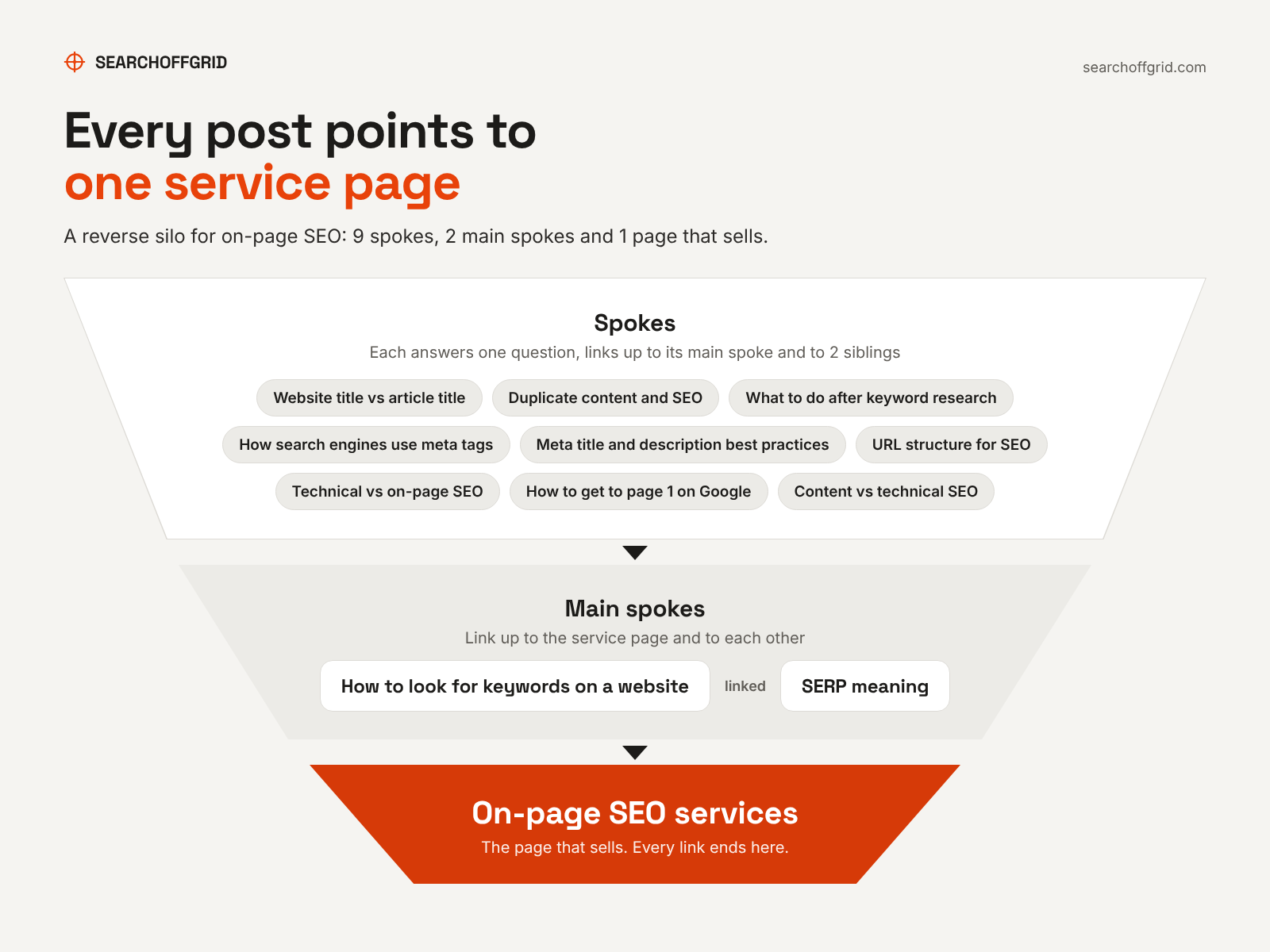
Methods 3 to 5 are the first step in our on-page SEO services. We find what each page ranks for and what it targets before we change a word. Skipping that step is how good pages get rewritten into worse ones.
This guide sits at the center of a set of on-page SEO guides, and every one of them links back up to that service page.
Method 1: Find a word on a web page with Ctrl+F
The fastest way to search a page for a keyword is the browser's find tool. Press Ctrl+F on Windows or Cmd+F on a Mac, type the word, and the browser highlights every match and shows a count.
On a phone, the find tool sits in the menu. In Chrome on Android or iPhone, tap the 3-dot menu and choose "Find in page". In Safari on iPhone, tap the share icon and choose "Find on Page."
Find in page is handy for a quick SEO check. Search for your target keyword and note where it appears: the headline, the first paragraph, subheadings and image captions. A page that never uses the phrase its owner wants to rank for has an obvious gap. A page that repeats it 40 times has the opposite problem, called keyword stuffing.
Method 2: Search a whole website for a keyword with the site: operator
To find every page on a website that mentions a term, type site:example.com "your keyword" into Google Search. Google returns indexed pages from that domain that match the phrase. The quotation marks force an exact match.
The site: operator helps with 3 jobs:
- Finding all your blog posts and product pages that already cover a topic before you write a new post.
- Spotting 2 pages on your site that compete for the same phrase.
- Checking how a competitor covers a topic across its website's pages.
Google's site: operator documentation says the operator does not return every indexed URL. Results without a search term are also not in ranking order. Treat the results as a sample. Many websites also have their own search bar, which searches content Google may not show.
When the site: search turns up 2 or more pages chasing the same phrase, you have a consolidation decision to make. Our guide on why duplicate content is an issue for SEO explains when to merge, redirect or canonicalize them.
Method 3: Find the keywords your website already ranks for in Google Search Console
Google Search Console shows the real search queries that earned your site impressions and clicks. Open the Performance report, select "Search results," and click the Queries tab. Each search query shows clicks, impressions, click-through rate and average position in Google Search.
To see the keywords for a single URL, add a Page filter and paste the address. To see which URL ranks for a keyword, filter by Query and then open the Pages tab. That second view shows when the wrong page ranks, such as a blog post outranking the product page you want to sell from.
Search Console has limits. Google's help page on Performance report data says rare queries and queries with personal information are withheld to protect privacy, and tables show a maximum of 1,000 rows. In the accounts we report on, roughly 18 to 19% of clicks come from these anonymized queries. That is why branded plus non-branded clicks never add up to your total. Report the gap as its own line so nobody mistakes it for lost traffic.
Search Console also folds AI search into the same numbers. Google's AI features documentation says clicks and impressions from AI Overviews and AI Mode are reported in the Performance report under the "Web" search type. You cannot separate them in the standard report, so look at which queries show an AI Overview when you check the SERP yourself.
Method 4: Find the keywords a competitor's website ranks for
To see a competitor's keywords, enter their domain into an SEO tool. In Semrush, use Organic Research and open the Positions tab. In Ahrefs, use Site Explorer and open Organic keywords. Both list the keywords the site ranks for, its position, estimated search volume and the ranking URL.
The more useful report is the keyword gap. Semrush's Keyword Gap tool and Ahrefs' content gap report compare your domain with several competitors and list keywords they rank for that you do not. That list is a ready-made set of keyword opportunities sorted by search volume and keyword difficulty.
Treat these numbers as estimates. Semrush and Ahrefs model rankings from tracked samples, so small keywords are often missing and traffic figures can be off by a wide margin. The data is good for spotting patterns and gaps. Confirm anything you plan to act on against the live search results.
Method 5: Check which keyword a page targets in its source code
To see the keyword a page is built to target, read the elements search engines weigh most. Right-click the page and choose "View page source," or press Ctrl+U on Windows (Option+Cmd+U in Chrome on a Mac). Then press Ctrl+F and search for these tags:
| Element | What to search for | What it tells you |
|---|---|---|
| Title tag | <title> |
The main keyword and how the page wants to appear in Google |
| H1 heading | <h1 |
The headline readers see on the page |
| Meta description | name="description" |
The pitch written for the search result snippet |
| URL slug | The address bar | The topic the page was filed under |
| Meta keywords | name="keywords" |
The owner's intent only, since Google ignores it |
The title tag and the H1 often differ, and each has a separate job. Our guide on website title vs article title shows where each title appears and which title Google uses for the blue link.
Meta tags deserve a closer look. Google's list of supported meta tags states that the meta keywords tag has no effect on indexing or ranking. Our explainer on how search engines use meta tags covers what each tag does today.
When you compare your page with a competitor's, look at how both titles and descriptions are written. If theirs earn the click and yours do not, our meta title and description best practices give you a checklist for rewriting them.
A padel store came to us because its racket collection would not rank. A blog post on the same site sat on page 1 for the same keywords. The first instinct was the copy, which praised the brand instead of selling rackets. Checking competitor pages changed that view, because competitors with worse copy still ranked. Ranking history showed the collection slid out over months and the blog appeared after. The collection had 8 referring domains, and most were spam links with exact-match anchors. The plan became cleaning toxic links, earning relevant sports links and rewriting the copy to sell rackets. Checking what competing pages target tells you whether on-page copy is the problem or only the most visible suspect.
The URL slug is the last clue. A slug like /products/item-4471 tells search engines nothing, while /running-shoes/womens names the topic. Here is how to optimize your URL structure for SEO without breaking existing rankings.
Method 6: Find new keywords for your website with keyword research
Keyword research finds the words and phrases your customers type into a search engine before they buy. It is the base of search engine optimization, because every page needs a keyword worth ranking for. Start with 5 to 10 seed keywords, the plain terms a customer would use for your products or services. Then expand them with free tools:
- Google autocomplete: type a seed keyword into Google and note the suggestions.
- People Also Ask and related searches: both sit on the results page and show the questions behind a topic.
- Google Keyword Planner: free inside Google Ads, it shows monthly searches and suggests new keyword ideas from a URL or seed term.
- Google Search Console: queries with high impressions and low clicks are long-tail keywords you already half rank for.
- A paid keyword research tool: Semrush, Ahrefs or similar add keyword difficulty, intent and bigger lists of relevant keywords.
To find the best keywords, weigh 3 things: search volume, intent and how strong the ranking pages are. Search volume alone will mislead you. Check the live results for each candidate before you commit. If you are new to reading a results page, start with our guide to SERP meaning.
We group keywords by their search results, which is the step most keyword research methods skip. If 2 keywords share 3 or more of the same URLs in Google's top 10, we treat them as 1 topic, so they belong on 1 page. If they share none, they need separate pages. This rule stops you from writing 4 thin articles that compete with each other.
For new websites with little authority, favor low competition, long-tail keywords that match a clear buying intent. Those bring traffic to your website sooner than broad head terms, and they show you which SEO keywords convert before you chase bigger ones.
What to do with the keywords you find
Finding keywords is the start of on-page SEO. Each keyword needs a home: 1 primary keyword per URL, a page type that matches the intent, and internal links that point toward the pages that sell. Our guide on what to do after keyword research walks through mapping keywords to pages and turning the list into a content plan.
Get help mapping your keywords
If you want a second pair of eyes, we can audit which keywords each page ranks for and map the gaps to the pages that should win them. See our on-page SEO services for how that works.